Switching School Management Software Without Stress
Switching school management software without losing a term: a week-by-week plan for exporting data, parallel running, staff training and inviting parents.

Key takeaways
- Pick your go-live date first, ideally at the start of a term or half term, and plan backwards from it.
- Export everything from the old system before you cancel it, and check the export opens and makes sense.
- Run old and new side by side for a short, fixed period, then switch off the old one on a named date so nobody keeps two registers.
The worst week to change systems is the first week of September: new classes, new staff, parents ringing about uniform, and a register nobody knows how to use yet. The best week is usually the quiet one before a new term starts.
If you are switching school management software, the short answer is this: choose a go-live date between terms, export and clean your data first, set up and train in the two weeks before, run both systems side by side for a short fixed period, then switch the old one off on a named day. Done in that order, you will not lose a term's records or a term's goodwill.
This plan is for office managers, heads and the coordinators of weekend schools and clubs who are moving from an old system, a set of spreadsheets or paper registers.
Before you start: is switching worth it?
Moving systems costs staff time, however good the new one is. Be clear about why. Write down the two or three problems you want fixed, such as registers that are not taken on time, absences that parents hear about too late, or reports to the attendance officer that take days to prepare. If the new system does not clearly fix those, stay where you are.
It also helps to know what you are paying now and what you would pay after the move. Our guide to school management software pricing has a worksheet for comparing the two over three years.
Step 1: set the go-live date and work backwards
Everything else hangs off one date. Good choices are the first day of a term or the first day after a half-term break. For weekend schools, pick the first session after a holiday.
Then plan backwards. Here is a timeline that suits most schools:
| When | What happens | Who leads |
|---|---|---|
| 4 weeks before | Decide, sign up, name one person in charge of the switch | Head |
| 3 weeks before | Export from the old system, clean the student and guardian list | Office |
| 2 weeks before | Set up classes, timetable, calendar and holidays; import students and guardians | Office |
| 1 week before | Staff training; teachers practise a register on their own phones | Office, teachers |
| Go-live week | Invite parents; run both systems side by side | Office |
| 2 weeks after | Switch the old system off; keep the export archived | Head |
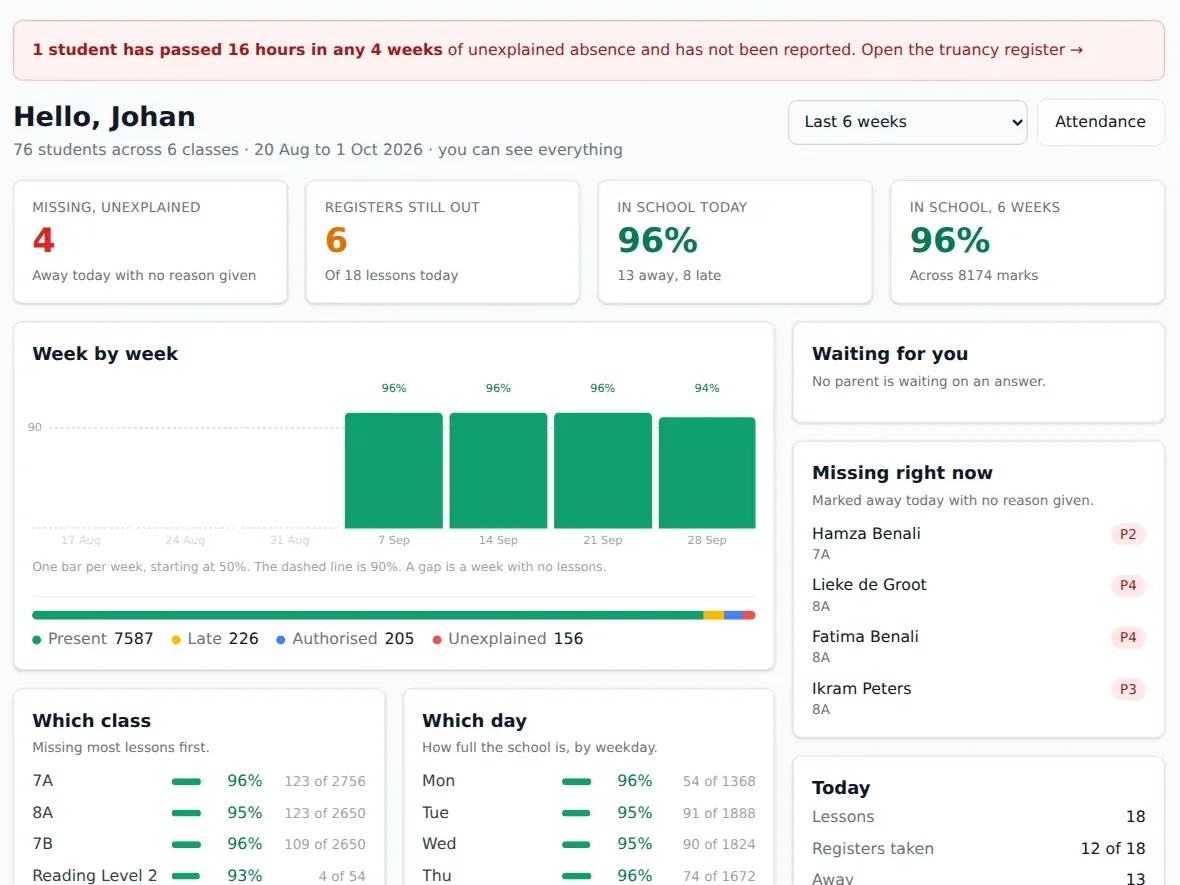
For comparison, a new school in StudaHub starts with five short questions (the school day, subjects, the first class, the children and the staff), so the software itself is ready on day one. The four-week plan above is about your people and your data: it leaves room for clean-up, training and the decision itself.
Step 2: export everything before you cancel anything
This is the step people regret skipping. Do not give notice on the old system until you hold a complete export and have opened it to check.
What to export
- Students, with class, date of birth and any identifiers you use
- Guardians and contact details, and who may collect whom
- Classes and groups
- The timetable, if you want to rebuild it rather than start fresh
- Attendance history for this year and last year, with absence reasons
- Any records you need for reporting to the attendance officer
- Progress records, such as reading levels or memorisation tracks
- The change history or audit log, if the old system offers one
Under the GDPR, Article 20 covers data portability, and a reasonable supplier will let you take your records in an open format such as CSV. Ask the old supplier how long they keep your data after the contract ends and how they delete it. Your data processing agreement with them (required under Article 28) should already say.
Clean before you import
An import copies your mess as faithfully as your good data. Spend an afternoon on the spreadsheet: remove children who left last year, merge duplicate guardians, and check that every child has at least one working contact. It is far easier to fix this in a spreadsheet than record by record in a new system.
If your old export uses column headings in another language, check that the new system reads them. StudaHub, for example, recognises headings in English, Dutch, French, German and Turkish, such as Achternaam, Nom or Nachname, in a CSV import, and lets you match any other column by hand.
Step 3: set up the new system in the right order
Order matters, because each part depends on the one before it.
- School year and calendar. Term dates, holidays and closures first, so lessons are not generated on days you are shut.
- Rooms, subjects and staff. The building blocks of the timetable.
- Classes. Named as staff and parents already know them.
- Students and guardians. Imported and placed in classes.
- Timetable. The weekly pattern of periods, subjects, rooms and teachers. See how to build a school timetable if you are starting from scratch.
- Permissions. Check what each role can see before anyone logs in.
Then do one test: pick a class, open tomorrow's lesson and check that the right students, teacher and room appear.
Step 4: train staff on the things they do daily
Do not try to train everyone on everything. Teachers need to take a register, set homework and see their timetable. The office needs absence follow-up, messages to parents and the student records. The head needs the overview and permissions.
Keep sessions short and practical. Ask every teacher to take a practice register on their own phone during training, in the room where they actually teach if you can. If a teacher cannot do it in the session, they will not do it at 8:45 on a Monday.
Step 5: invite parents with a clear message
Parents are the part of switching school management software that can go quietly wrong. Send one short message a few days before go-live explaining what is changing, what they need to do, and when. Keep it plain: a new way to see homework and report absence, an invitation arriving by email, nothing to install if the system runs in the browser.
Then chase the families who have not signed in after a week. The Department for Education's toolkit on communicating with families is a useful reference for tone, even if you are not in England. Our guide to school parent communication goes further.
Step 6: run in parallel, briefly, then stop
For the first week or two, keep the old system available for reference while all new registers go into the new one. Do not ask teachers to mark both: they will do one badly. Instead, have the office compare a few classes each day.
Then set a switch-off date and stick to it. Tell everyone. After that date, the old system is read-only or gone, and the archived export is the record.
A switching checklist you can copy
- Problems we want the new system to fix, written down
- Go-live date chosen (start of term or after a break)
- One person named as lead for the switch
- Full export from the old system saved and opened to check
- Old supplier asked about data retention and deletion
- Student and guardian spreadsheet cleaned
- Calendar, holidays and closures set up
- Rooms, subjects, staff and classes set up
- Students and guardians imported and checked
- Timetable entered and tested on one class
- Permissions checked for each role
- Teachers trained and practice register taken
- Parent message sent, invitations sent
- Parents not signed in after a week contacted
- Parallel running period with an end date
- Old system switched off, export archived
Where to start
Start with the date. Once you know when you will go live, every other step in switching school management software has a deadline, and deadlines are what stop a migration drifting into the middle of a term.
If you want to see how the setup would go with your own data, StudaHub lets you import your students from a spreadsheet, and the first 3 months are half price.
If you are comparing options, StudaHub's pricing is one flat price per school.
Frequently asked questions
When is the best time to switch school management software?
The easiest moment is between terms or at a half-term break, when registers are quiet and staff have time for training. Avoid the first weeks of a school year and exam or reporting periods. Choose the go-live date first and plan the setup, import and training backwards from it.
How long does switching school management software take?
For a typical school, plan for about two to four weeks of preparation. A week to set up classes and import students and guardians, a week of staff training, and a short period of running both systems. Messy data or several sites can add time, so start the data clean-up early.
What data should we take from our old school system?
At least students, guardians and contact details, classes, the timetable, and the attendance history for the current and previous school year. Also export absence reasons, any records you need for attendance officer reporting and the audit history if the old system offers it. Keep a dated copy somewhere safe.
Who should lead a switch of school management software?
One person with time set aside, usually the office manager or a deputy head, supported by the head. They own the plan, the dates and the data. Each part of the school should name someone to test the new system and train colleagues, so the switch does not depend on one person alone.
How much does switching school management software cost?
The new subscription is usually the smallest part. The real costs are staff time for cleaning data, testing and training, and any overlap where you pay for both systems. Check whether your old supplier charges for exporting your data or has a notice period, and plan the dates around it.